
Escape Verity Controls & Settings
Platform inputs and audio settings that help you hear Verity and interact with keys and doors.
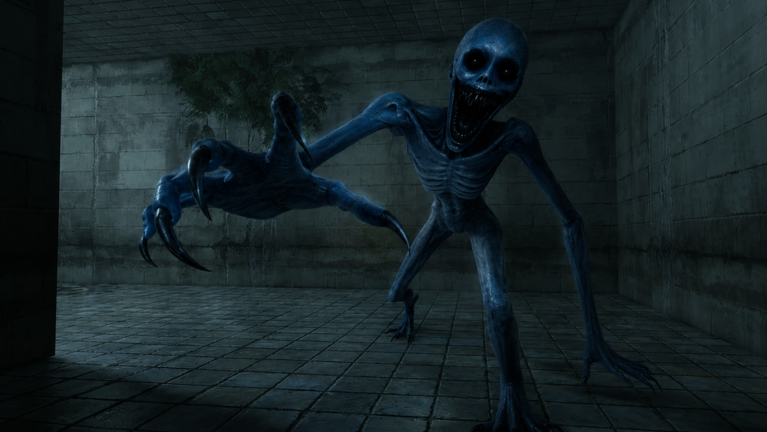
Clean inputs make horror readable. Escape Verity™ on Roblox uses standard Roblox movement and interaction defaults with occasional context prompts for keys, doors, and switches. This guide lists controls by platform, plus settings that help you hear Verity and interact reliably under stress.
Pair with How to Play and How to Survive Verity once your bindings feel comfortable.
PC controls (keyboard and mouse)
Roblox PC defaults apply unless the developer rebinding menu overrides them:
| Action | Default |
|---|---|
| Move | W A S D |
| Jump | Space |
| Camera | Mouse |
| Interact / click | Left mouse button or E (context) |
| Sprint | Shift (when enabled by experience) |
| Menu | Esc |
Escape Verity rewards precise camera control when peeking corners. Lower mouse sensitivity slightly if you overcorrect during chases.
Mobile controls
Mobile Roblox uses on-screen controls:
- Virtual joystick for movement.
- Swipe to rotate camera — use two fingers for fine aim.
- Tap interact buttons when prompts appear near keys or doors.
Mobile players should use headphones. Phone speakers hide footstep nuance Verity players rely on. Consider larger UI scale in Roblox settings if interact buttons feel cramped during panic moments.
Gamepad / controller
Controller layouts follow Roblox defaults:
- Left stick move, right stick camera.
- A / Cross jump.
- X / Square or context prompts for interact — watch on-screen labels.
Horror games on controller benefit from linear movement habits: push sticks lightly to walk quietly when the game differentiates walk/run speeds.
Interaction prompts
Keys, doors, and switches show proximity prompts. If a prompt fails to appear:
- Step closer to the handle or key pedestal.
- Face the interactable directly — oblique angles miss hitboxes.
- Confirm another player is not mid-animation on the same object.
See Keys guide for pickup etiquette when multiple players reach a key simultaneously.
Audio settings for survival
Verity hunting is audio-driven. Recommended Roblox client settings:
- Headphones on always.
- Lower music volume slightly if it masks footsteps.
- Keep SFX high enough to hear doors and distant movement.
- Disable unrelated Roblox overlay sounds during serious runs.
Proximity voice chat, if enabled, is a gameplay mechanic — loud open mics attract trouble. Use push-to-talk when possible.
Graphics and performance
Stable frame rate beats max visuals in horror:
- Cap graphics if mobile device heats/throttles.
- Reduce blur/post effects if they darken halls excessively.
- Fullscreen on PC improves focus and reduces mis-clicks.
Performance dips during twelve-player lobbies can cause input lag — join less crowded servers when learning.
Accessibility notes
If color-only key labels are hard to read, lean on shape/text callouts from teammates. The wiki Keys guide describes common matching language you can standardize in group chat.
Roblox platform accessibility options (font size, UI scale) stack with in-experience prompts — adjust before entering Chapter 2 pressure.
Related guides
After configuring controls, continue to How to Find Keys and Chapter 2 Guide. Track patches that might add new interact types in Updates Hub.
Stress-test your bindings
Before a serious Chapter 2 attempt, spend one casual lobby testing only inputs: walk a full spine loop, pick up a key, unlock one door, and rotate camera at every junction type from Halls Overview. If you fumble interact prompts under zero pressure, you will mis-click during Verity chases. PC players should confirm whether Roblox uses click-to-move in their client — accidental pathing into open junctions is a common wipe cause. Mobile players should verify tap targets on their device size; pinch-zoom the UI once in Roblox settings if buttons sit under notches.
Accessibility and comfort settings
Roblox client volume, graphics quality, and camera sensitivity change how early you hear Verity. Lower music relative to effects so footsteps and door cues stay readable. On laptop trackpads, reduce camera sensitivity slightly so panic flicks do not spin you into a wall during a chase. If you play with hearing limitations, assign a hearing buddy in voice chat whose only job is calling hunter direction while you handle unlocks.
Practice routine before ranked clears
Spend one lobby practicing walk-only movement through the first two junctions. Confirm you can open doors without accidental sprint. Then practice a controlled retreat: walk, break line of sight, walk again. That micro-routine transfers into Chapter 2 where longer halls punish noisy habits learned on Chapter 1.
Frequently Asked Questions
Quick answers to the most common questions.
Can I rebind keys on PC?
Roblox supports some remapping in settings. Check both Roblox client and in-experience menus if available.
Is there a dedicated crouch button?
Depends on current build. Use slow movement when possible and confirm in-game prompts.
Why do interactions fail on mobile?
Angle and distance matter. Face the object and tap when the prompt appears.
Does controller have aim assist?
Roblox controller behavior is platform-default. Precision peeking still requires manual camera control.
Best audio setup for Verity?
Headphones, slightly lowered music, clear SFX, and quiet voice comms.